Anonymise, prompt the AI, read it back in clear: the full loop.
Five minutes is all it takes. This guide follows the real way Tacitum is used: from dropping in your document to reading the AI's answer back with your real data — without anything ever leaving your machine.
Before you start: install Tacitum
Download and install
Two ways to install Tacitum on Windows 10 or 11 (64-bit) — it is the same application, with the same features:
From the Microsoft Store — open the Tacitum listing on the Microsoft Store and click Get: Windows downloads and installs everything for you, with no security warning.
Or by direct download — grab Tacitum for Windows: a digitally signed .exe installer of about 20 MB. Run it — it downloads the application (≈ 600 MB, analysis engine included) during setup and lets you pick the language, the theme, and how long local mappings are kept. This is the route to take if the Store is disabled on your machine, as it is in some companies.
Either way, those settings stay adjustable at any time in Settings.
You start with 10 free conversions, every feature included: no account, no sign-up, no credit card.
Step 1 — Anonymise a document
Drop in your files
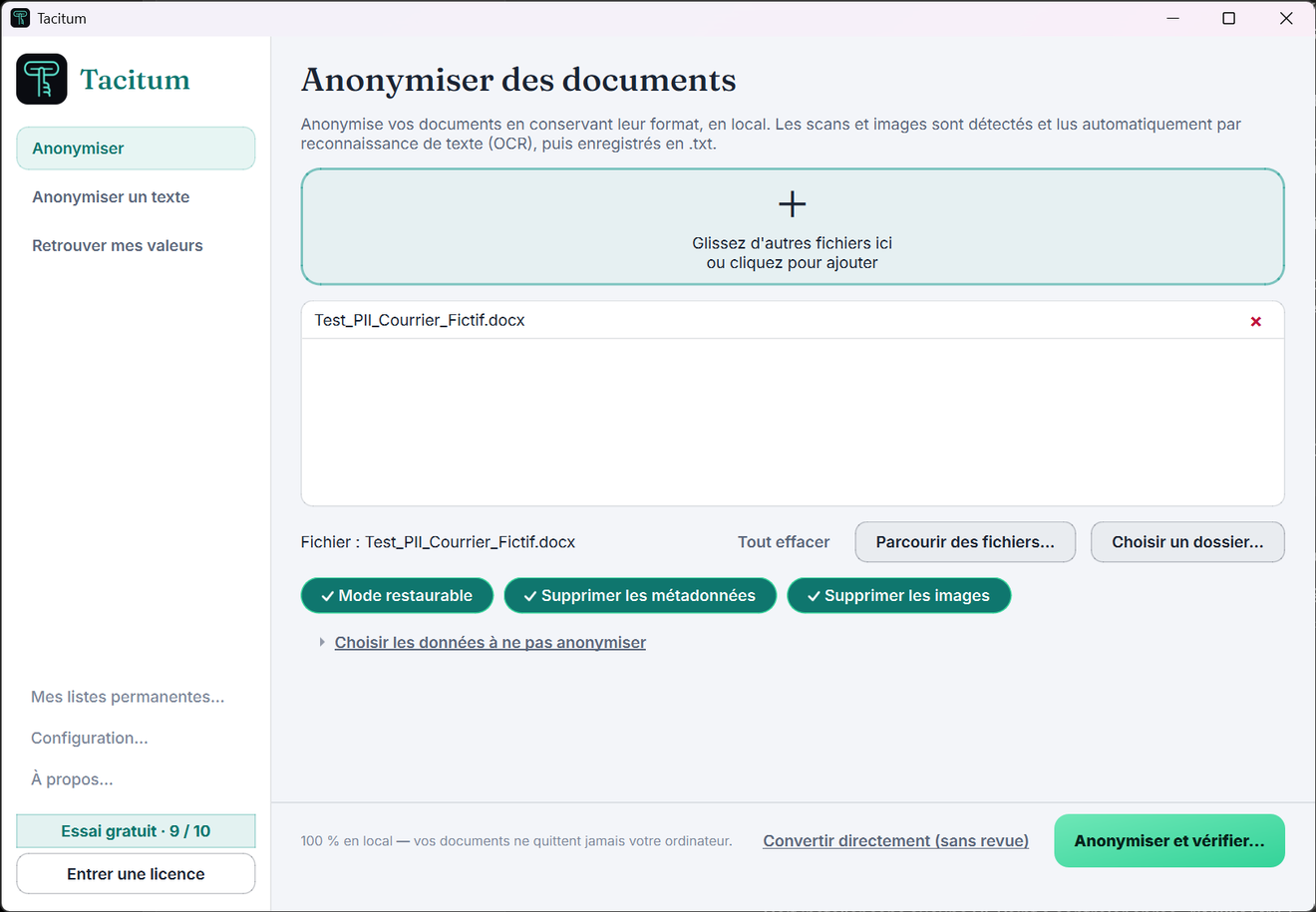
On the Anonymise page, drag one or more files — or a whole folder — into the drop zone, or click to browse. Seven formats are supported (.docx, .pdf, .xlsx, .doc, .pptx, .txt, .csv) plus scanned documents and photos, read automatically by text recognition.
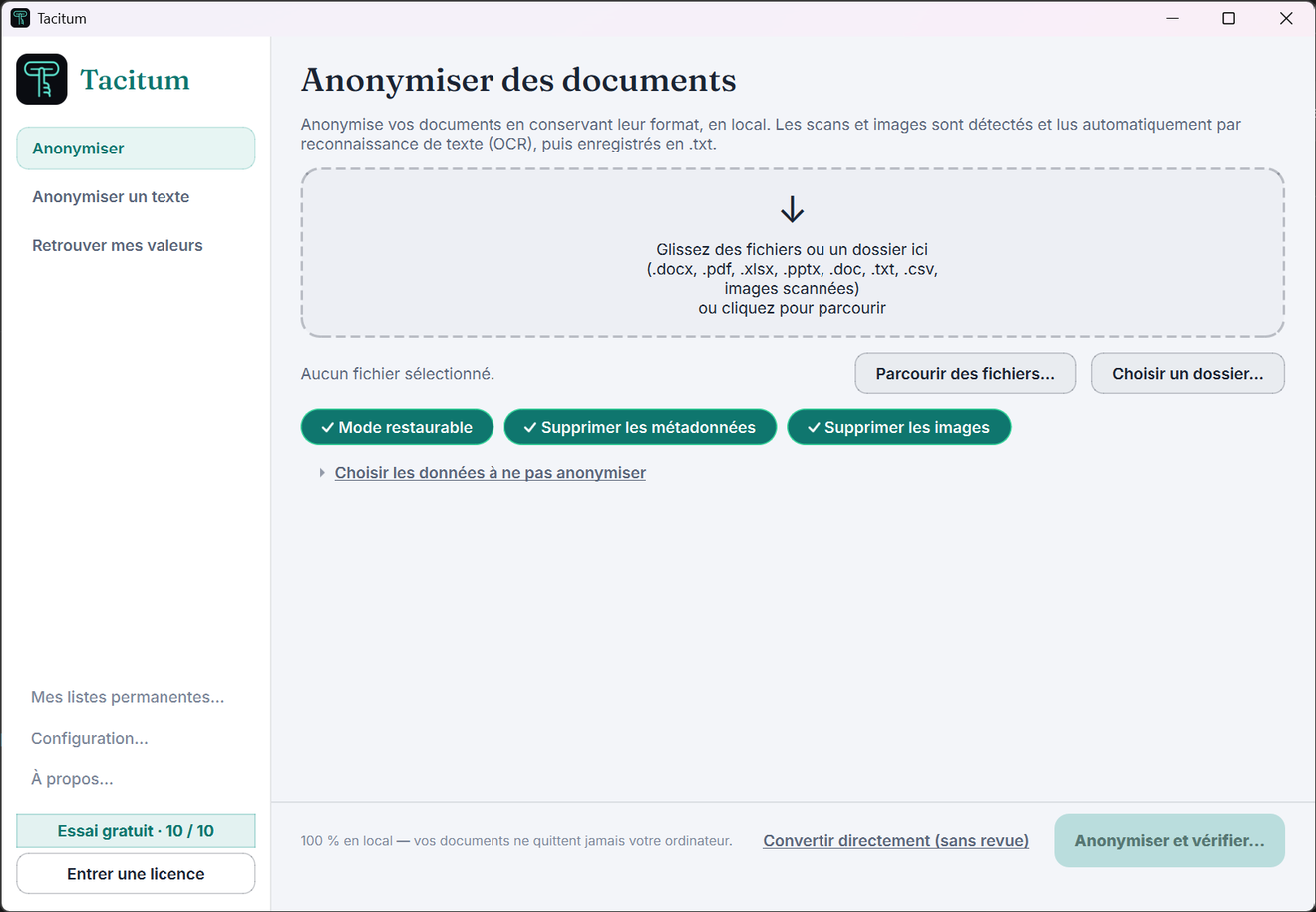
Choose your options
Three options sit above the convert button:
Restore mode (on by default) — keeps, on your machine only and encrypted, what you need to recover your values and read the AI's answer back in clear. It changes nothing about the file you produce, which stays irreversible for whoever receives it.
Remove metadata — strips author, comments, hidden properties from the file.
Remove images — an image can hold readable data (a signature, a stamp, a header): they are removed and replaced with a marker.
The "Choose the data to keep" link lets you keep some categories in clear — for example keeping dates if your analysis needs them.
Run the conversion
Two buttons, two uses: "Anonymise and review…" first shows the list of detected data for validation (recommended, see step 2); "Convert" anonymises and writes the file straight away.
The result is written next to the original, which is never modified. The output file name is anonymised too (a Letter_John_Smith.docx becomes Letter_[NAME]_anonymised.docx) and, for a folder, everything is grouped in a Tacitum_anonymised_… folder.
A real document, before and after
Here is a real Word letter — header with a logo, formatted tables, a stamp and a signature — put through Tacitum. On the left the original, on the right the file it produces:
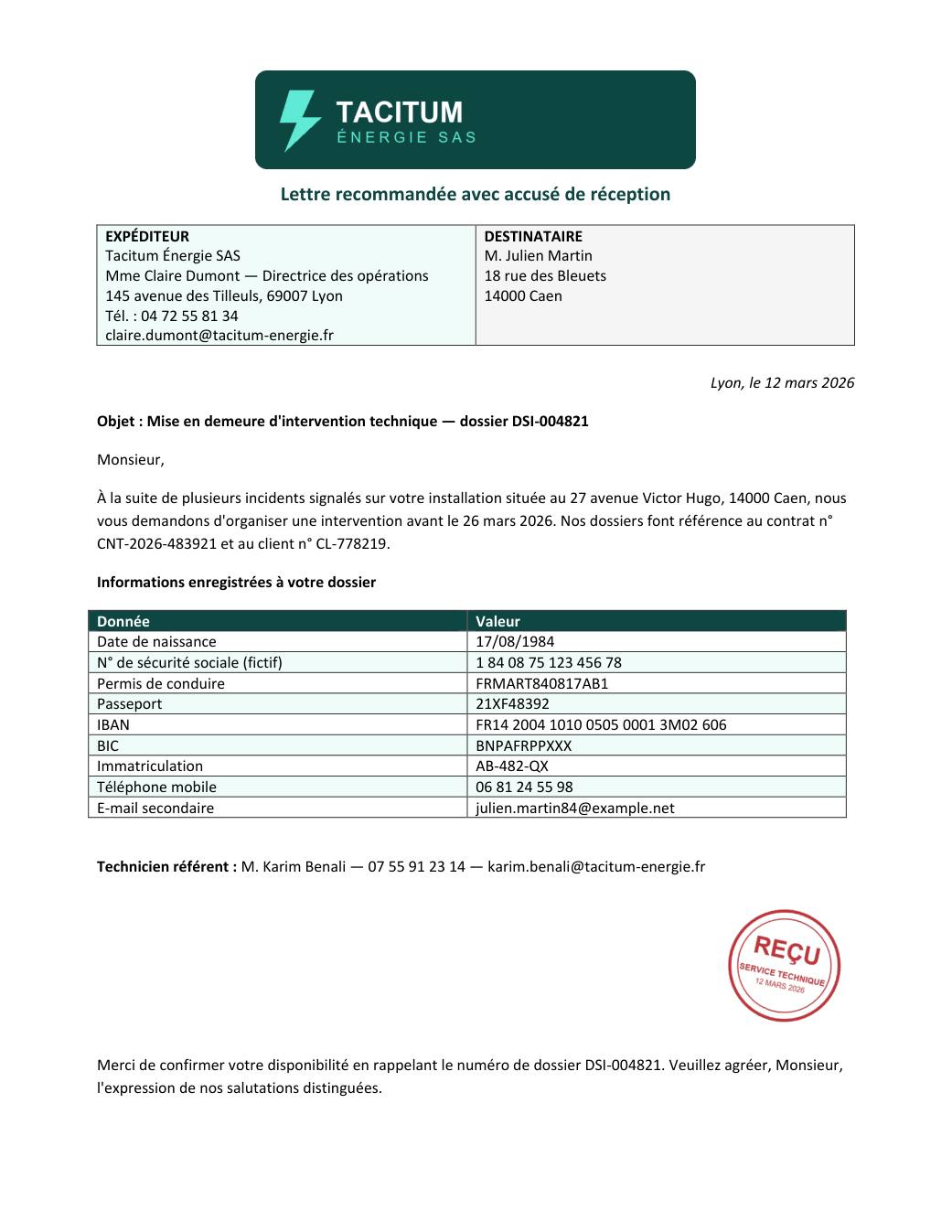
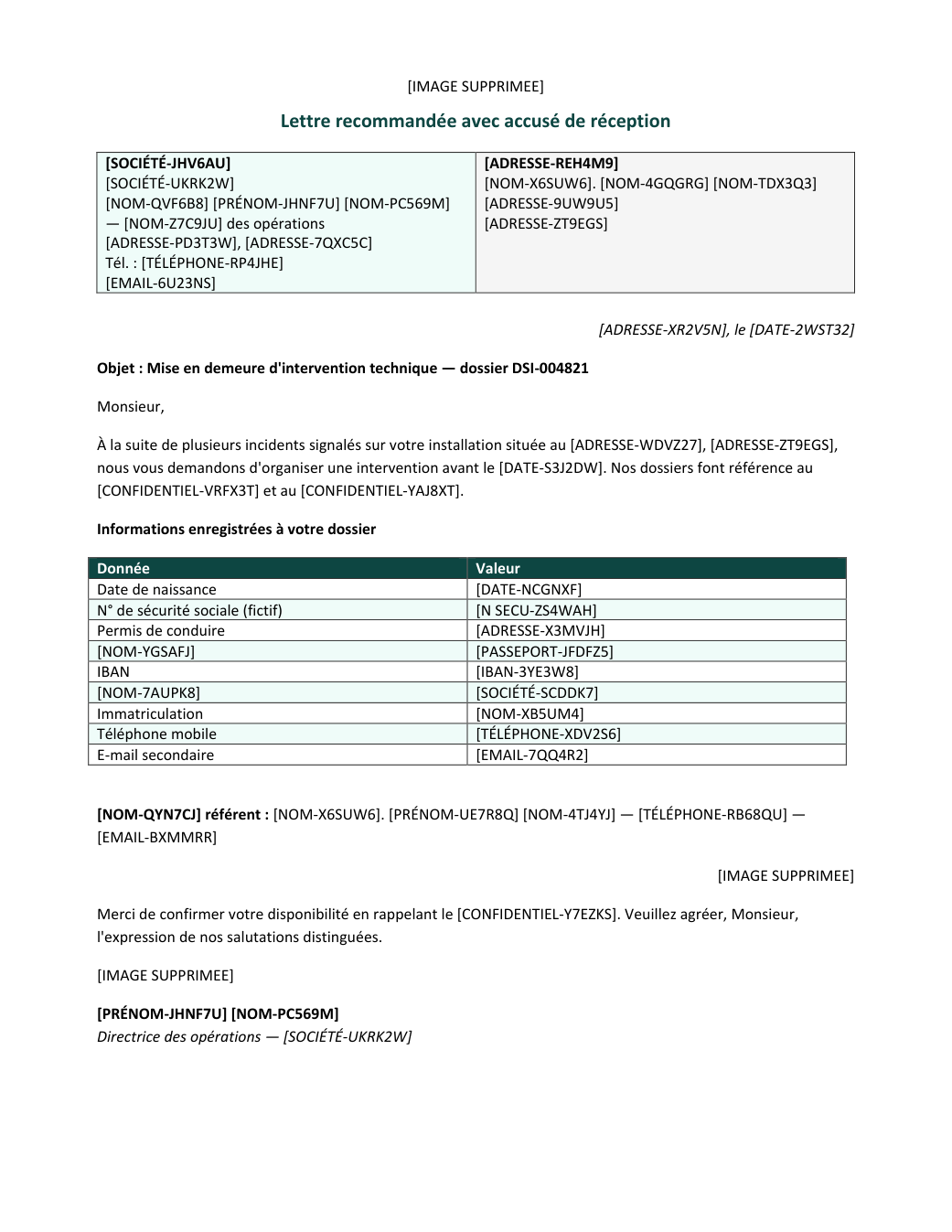
[IMAGE SUPPRIMEE]. No blacked-out page, no broken document.Step 2 — Review before writing
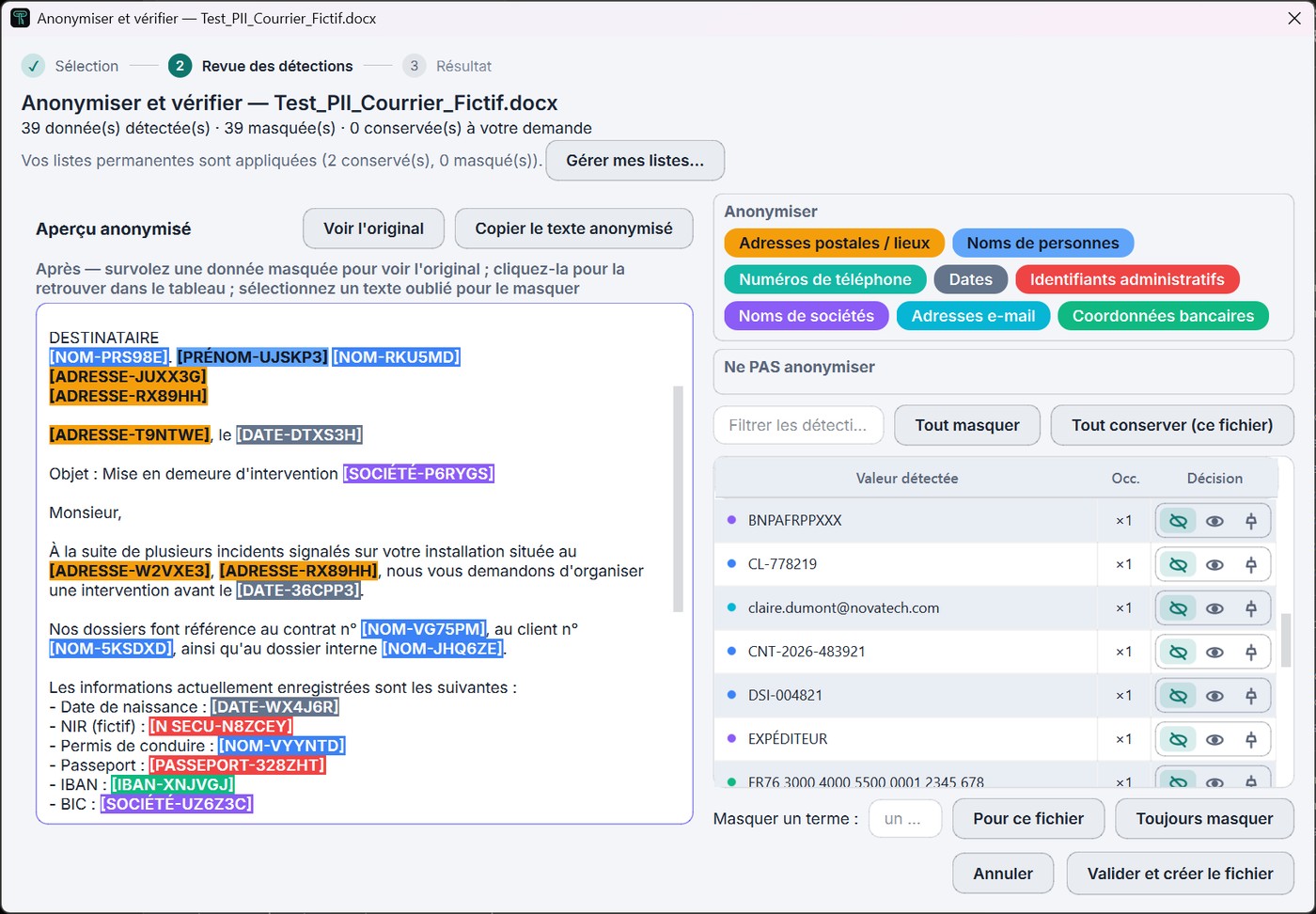
With "Anonymise and review…", Tacitum shows the full list of detected data before producing the file. You stay in control:
Validate, keep, add
Each detection appears in a table with its type and a preview of the result. You can keep a value that was flagged by mistake (for this file, or permanently via your saved lists), or on the contrary mask a term you select in the preview — once, or for good.
The preview updates live: what you see is exactly what will be written.
Step 3 — Use the document with the AI of your choice
ChatGPT, Claude, Copilot, Gemini, Mistral…
Send the anonymised document to your usual AI, exactly as you normally would: summary, analysis, translation, drafting. The text keeps all its meaning — the AI understands that a given label refers to the same person throughout — but no longer contains any identifying data.
Only that anonymised state crosses the Internet. The file you produce carries no lookup table: it is irreversible for whoever receives it, the AI included.
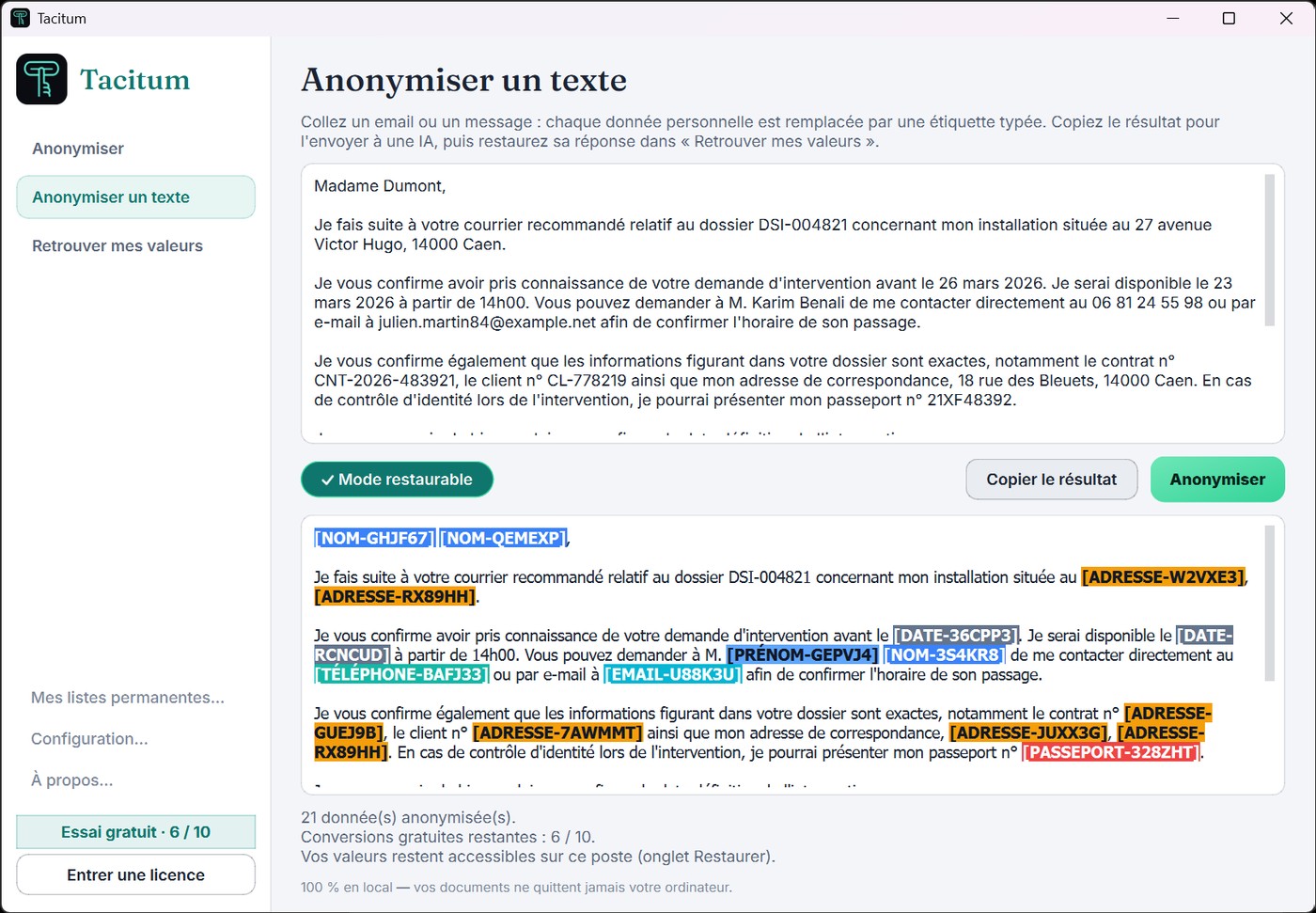
For a simple e-mail or a snippet to paste, the Anonymise text page does the same thing without a file: paste, anonymise, copy the result.
Step 4 — Read the answer back in clear, on your machine
"Recover my values"
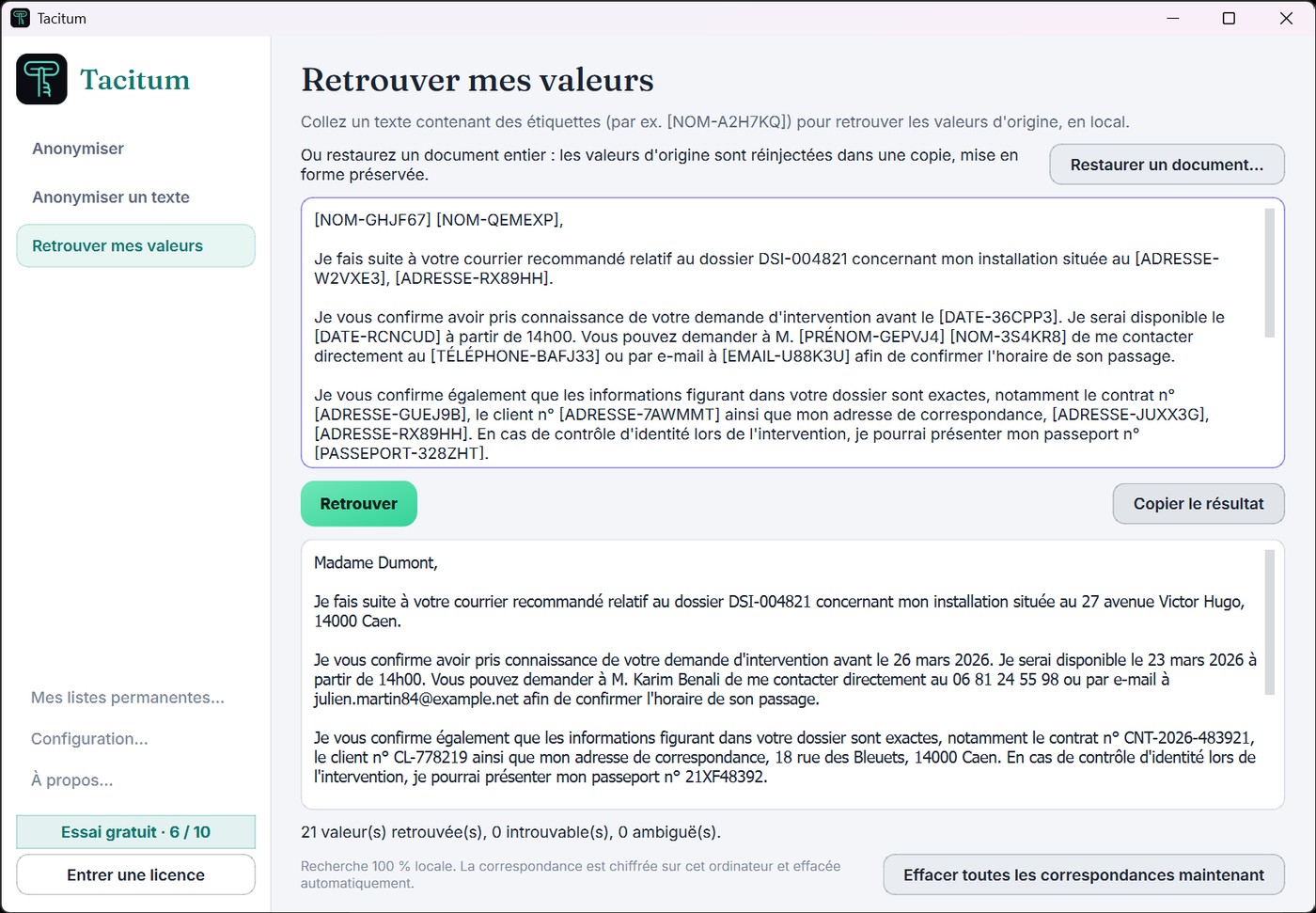
The AI answers using the same labels. Paste its reply into the Recover my values page: Tacitum re-injects your real data and you read the text with the real names — without anything going back over the Internet.
This works thanks to Restore mode: a mapping kept on your machine only, encrypted and tied to your Windows account, automatically wiped after the period you chose (30 days by default), and never shared or transmitted. It concerns only you: the shared document itself stays irreversible.
What Tacitum detects
Each value is replaced by a typed label, consistent throughout the document: the same person keeps the same code everywhere. The main categories:
| Label | Category | Examples |
|---|---|---|
| [NOM] | People's names | surnames, first names, including in CAPITALS or in signatures |
| [EMAIL] | E-mail addresses | work and personal |
| [TÉLÉPHONE] | Phone numbers | landline, mobile, French and international formats |
| [ADRESSE] | Postal addresses / places | number and street, postcode and city, places |
| [SOCIÉTÉ] | Company names | companies, firms, organisations |
| [DATE] | Dates | birth, hire, deadlines (can be kept if you choose) |
| [N° SÉCU]… | Administrative IDs | social security number, company registration, ID card, passport, plates |
| [IBAN]… | Bank details | IBAN, bank details, card numbers |
| [CONFIDENTIEL] | Your own terms | any term added to your deny list — always masked |
[NOM], [SOCIÉTÉ]…), regardless of the interface language.Going further
A whole folder at once
Drop a folder: Tacitum offers to include the subfolders, processes everything in one pass and groups the results in Tacitum_anonymised_…, keeping the tree structure if you want. Masking is consistent across the whole batch: a person cited in several files gets the same code everywhere.
Scanned documents and photos
Scanned PDFs and images (.png, .jpg…) are detected and read automatically, then anonymised to .txt — all locally. The quality of the result depends on the scan; difficult documents are explicitly flagged for re-reading.
Anonymise a plain text
The "Anonymise text" page handles an e-mail or a pasted passage, without creating a file: paste, click, copy the result to your AI. The answer is then restored in "Recover my values", just like a document.
Your settings, once and for all
In "Settings": language (French/English), dark or light theme, how long local mappings are kept, export/import of your permanent lists to move them to another machine.
Activate your licence
After purchase: two minutes
After your online purchase (€79 incl. VAT, one-time payment), your licence key arrives immediately by e-mail, with your invoice. In Tacitum, click "Enter a licence", paste the key, confirm: done.
Activation needs a brief internet connection (only the key is checked — never your documents, which never leave your machine under any circumstances). One licence covers one user, i.e. one Windows session.
This guide is also available as a printable file: quick-start guide (PDF). A problem, a question? Write to us: contact@tacitum.tools.
Ready to try? It's free.
10 free conversions, every feature included — no account, no credit card.