Your AI assistant reads your documents, anonymised on your machine and checked by you.
The AI Connector links Tacitum to Claude Desktop and Codex Desktop. You ask the assistant for an analysis; Tacitum anonymises the document on your computer, you check what goes out, and only the masked text is sent. You then read the answer back in clear, on your own machine. No more copy-and-paste or attachment: the assistant asks Tacitum for the document.
The principle: the assistant only receives the anonymised text you have checked
Without the AI Connector, you anonymise a file in Tacitum, drop it into your assistant, then paste its answer into "Recover my values". With the AI Connector, the assistant asks Tacitum for the document itself, and every sensitive step stays on your computer. In this guide, the examples name Claude; with Codex, only the plug-in step differs (step 2 b): the other steps and windows are the same, and Tacitum shows "Codex" there.
You ask
In Claude Desktop or Codex Desktop: "Analyse my contract with Tacitum". Tacitum opens its picker: you choose the file or, if you asked for a folder, the whole folder.
On your machineTacitum anonymises, you check
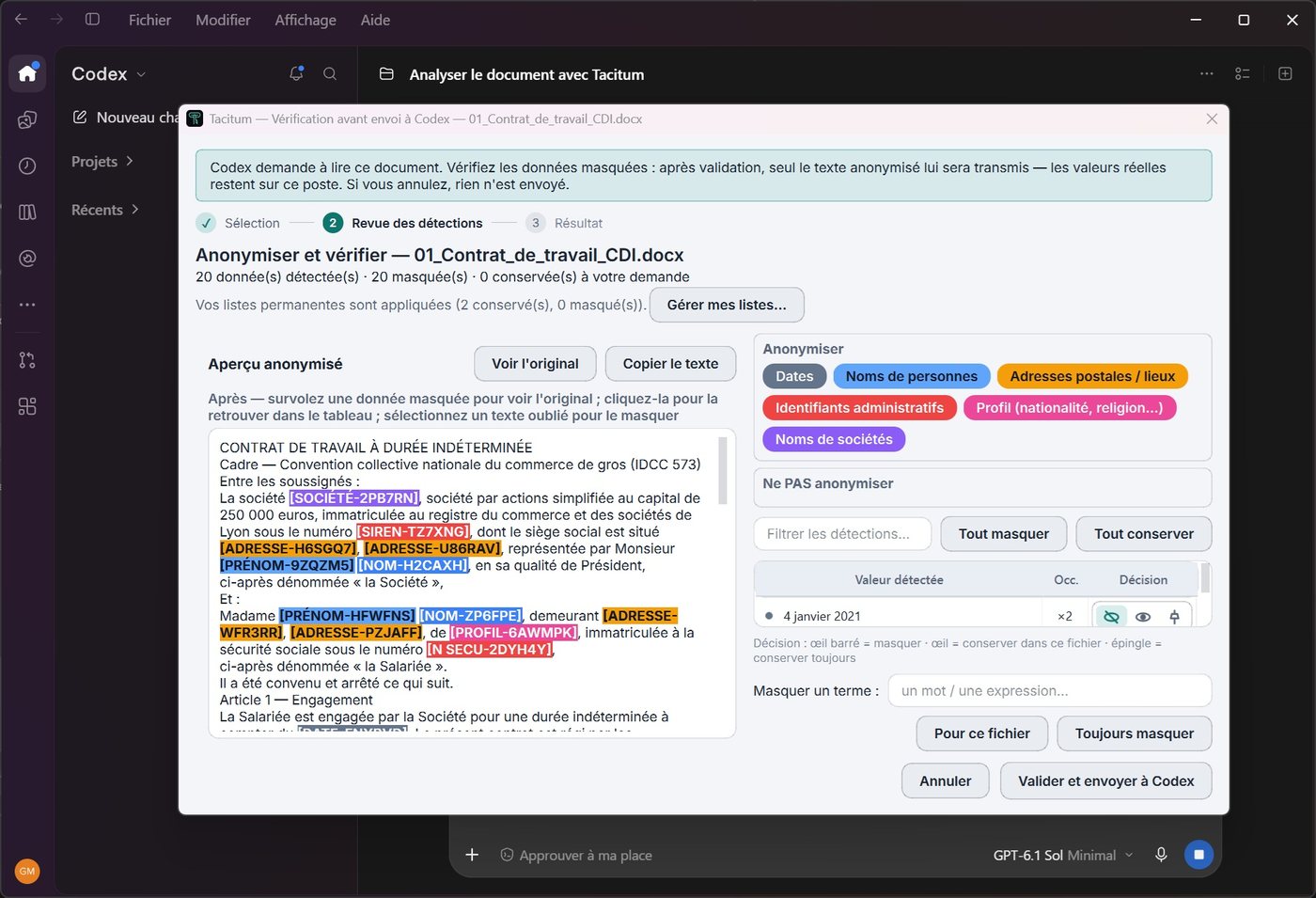
100% local analysis, then the usual review window. Nothing leaves before you click "Confirm and send to Claude".
On your machineThe assistant receives the masked text
Only the anonymised text is sent: [NOM-A2H7KQ] replaces the person, everywhere and in every document. The assistant analyses, summarises, drafts.
You read it back in clear
"Show me your answer in clear with Tacitum": a local window puts your real values back in. Nothing goes back to the assistant.
On your machineBefore you start
Three things you need
- Tacitum, up to date, on this machine. The free trial is enough to try the AI Connector: its 10 conversions also work with the assistant. To keep using it afterwards, the AI Connector adds to a Tacitum licence (€79, one-time payment). If "AI Connector…" does not appear in Tacitum's left column, your version predates the AI Connector: install the update offered at launch.
- Claude Desktop (Claude's desktop app, by Anthropic) or Codex Desktop (Codex's desktop app, by OpenAI), for Windows, installed and signed in to your account. These are the two supported assistants; you can plug in both.
- The AI Connector: nothing to buy during the free trial. After that, €69 for one year (no VAT applicable, art. 293 B CGI), bought directly from Tacitum (step 1 below), or included in the Tacitum + AI Connector bundle (€148) when you buy the licence on the website. No subscription: when it ends, nothing is charged; you decide whether or not to extend.
Step 1 — Get the AI Connector
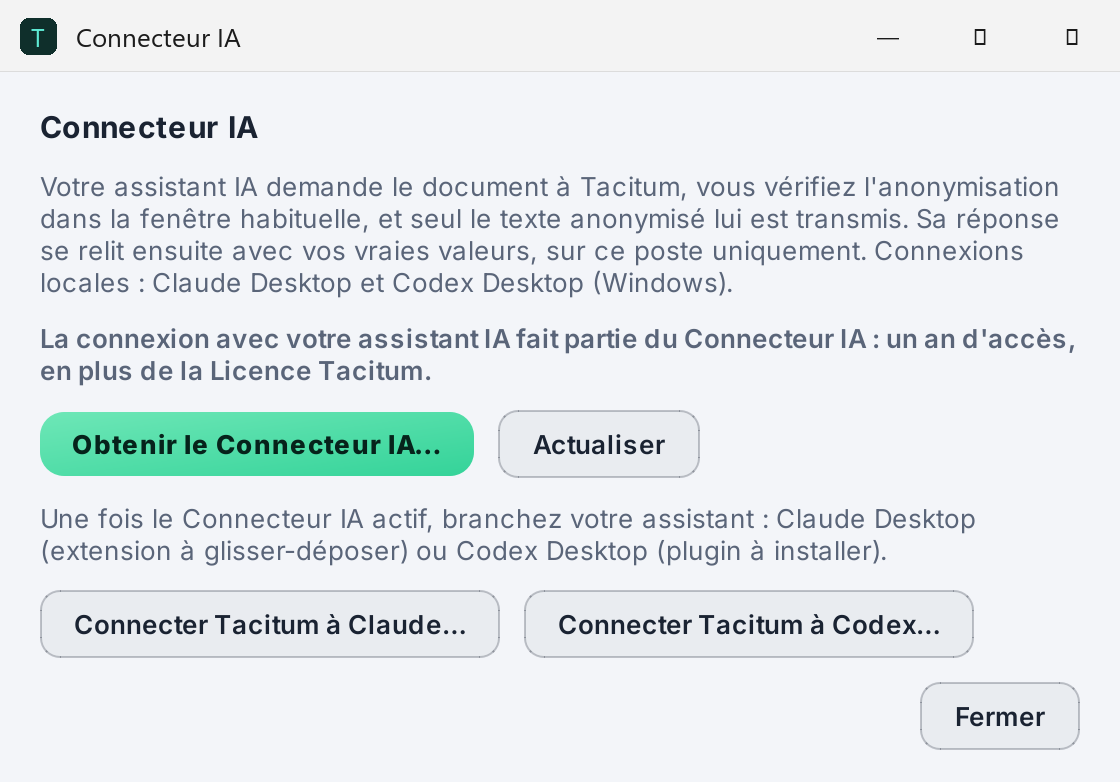
Open the "AI Connector" window
In Tacitum, click AI Connector… in the left column. The window recalls how it works and shows the status of your access. Until you have bought it, it offers "Get the AI Connector…".
Buy one year of access
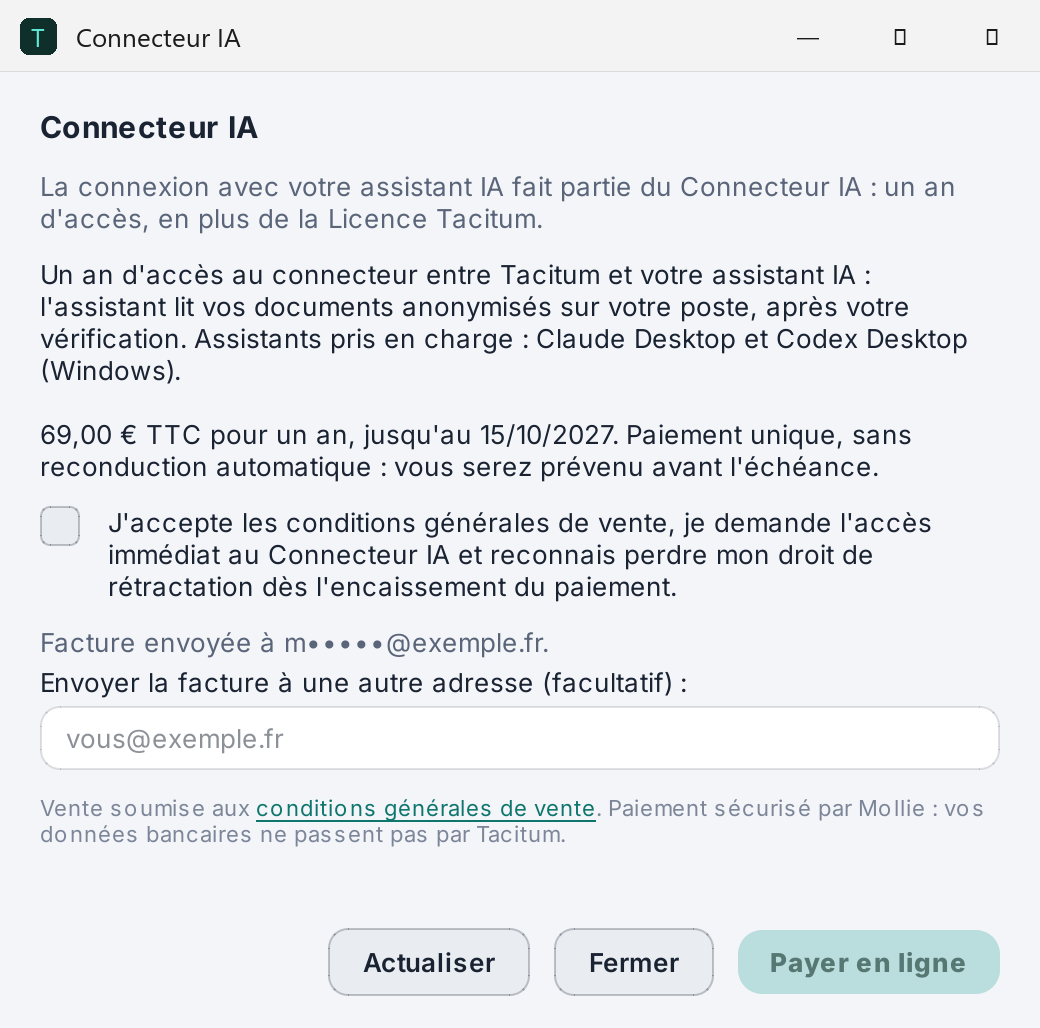
Click "Get the AI Connector…". Tacitum shows the offer, loaded from the licence server: €69 (no VAT applicable, art. 293 B CGI) for one year, with the end date, one year after payment (see the terms of sale, article 8). The invoice is sent to your licence's e-mail address; you can enter another one, which then becomes your licence's contact address.
Tick the box by which you request immediate access and acknowledge that you lose your right of withdrawal (terms of sale, article 8), then click "Pay online": secure payment opens in your browser (Mollie: no bank details go through Tacitum). Leave the Tacitum window open: it updates by itself as soon as the payment is confirmed. If you closed it or confirmation is slow to arrive, click Refresh.
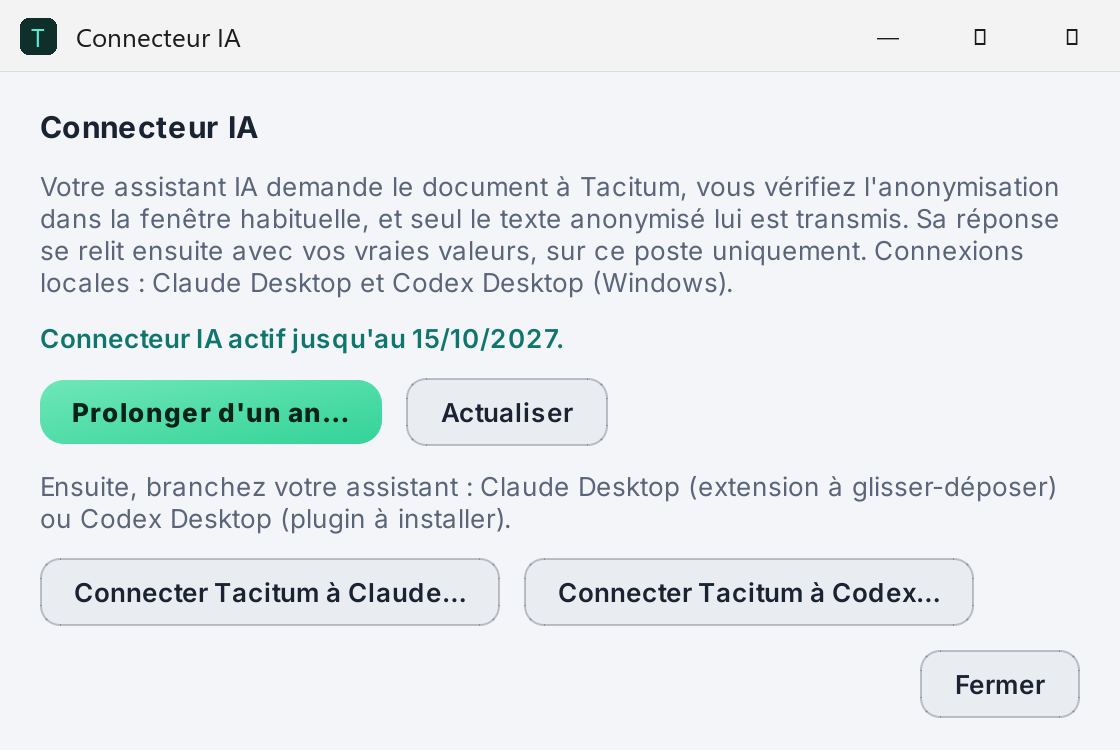
Check: "active until…"
Back in Tacitum, the window shows "AI Connector active until …" in green. If you extended from the link in the e-mail, or if the status has not refreshed, click Refresh: Tacitum queries the licence server with the same data as the licence check (the key and the technical fingerprint of your Windows session), never a document.
Step 2 — Plug in your assistant
The "AI Connector" window has two buttons: "Connect Tacitum to Claude…" and "Connect Tacitum to Codex…". Each builds a package specific to your installation (it points to your Tacitum, which carries your licence and your settings); no assistant configuration file is changed behind your back. Follow the part that applies to you, or both.
2 a Claude Desktop
"Connect Tacitum to Claude…"
Tacitum creates the extension for Claude Desktop, the file Tacitum.mcpb, saved in Documents\Tacitum. Two cases, depending on your Claude Desktop installation:
- Claude Desktop opens straight onto its extension installation window: confirm.
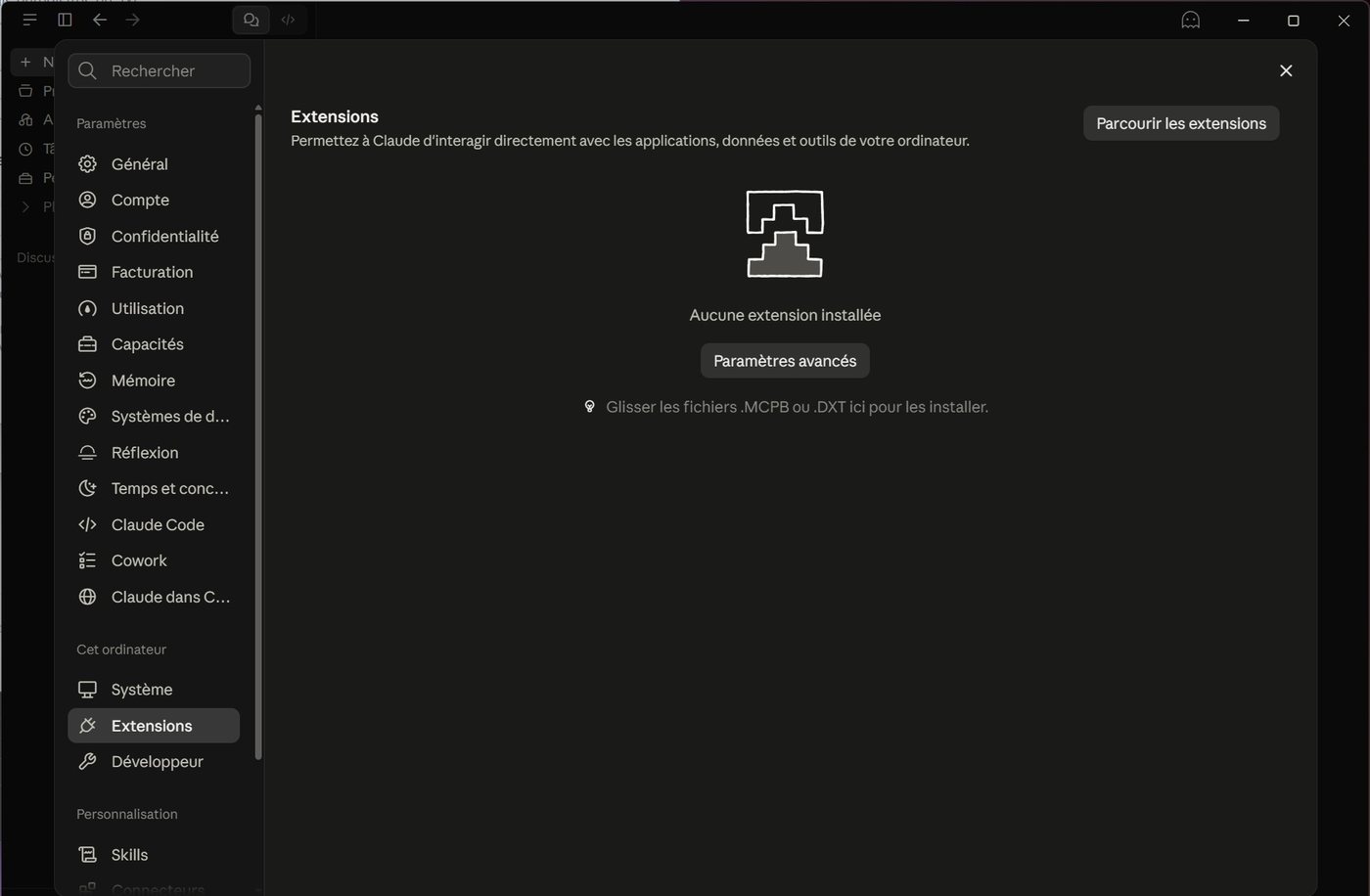
- Otherwise, Windows File Explorer opens with the
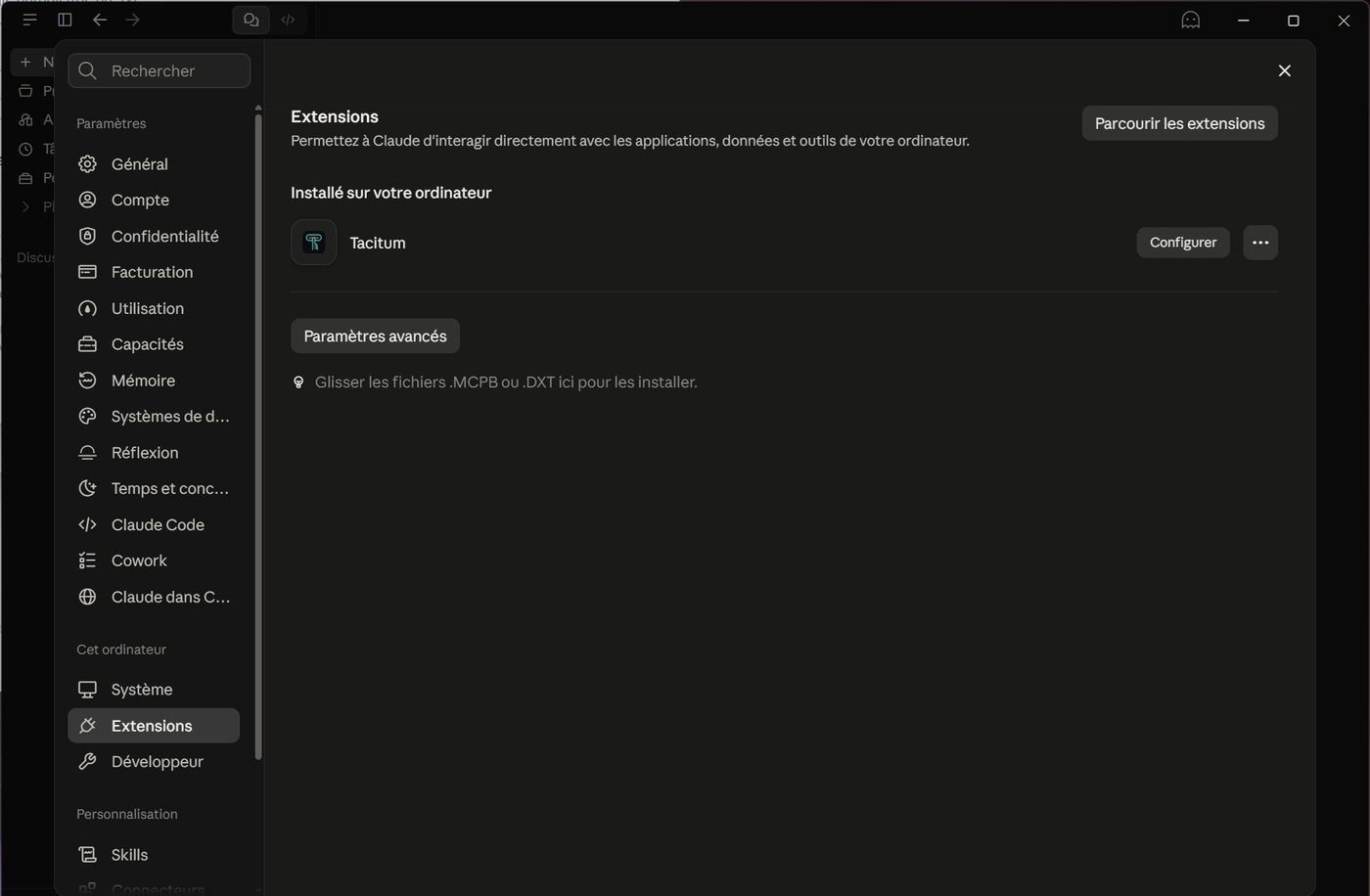
Tacitum.mcpbfile selected. In Claude Desktop, open Settings → Extensions and drag the file into the drop zone for .MCPB or .DXT files.
Confirm the installation
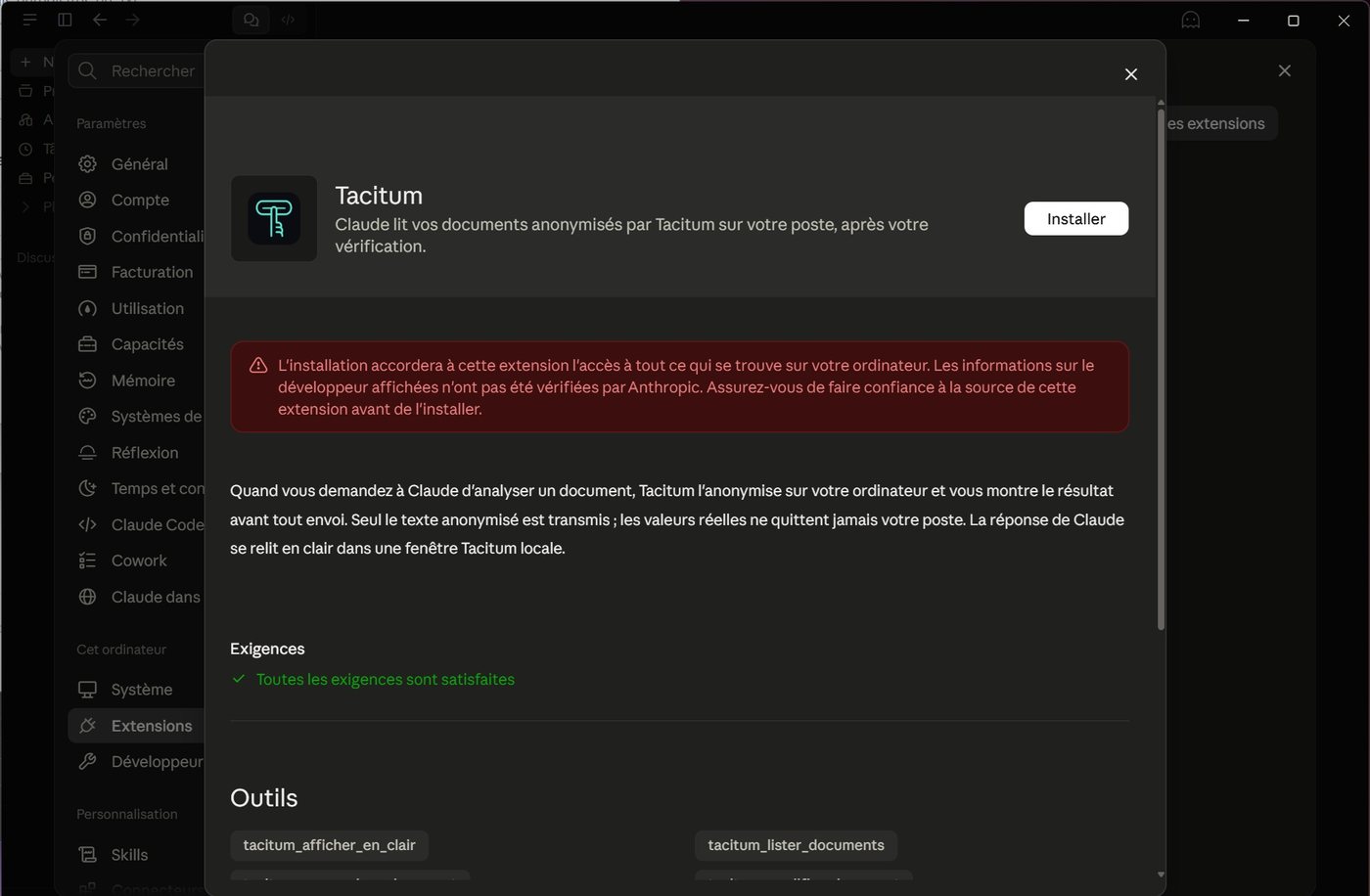
Claude shows the "Tacitum" extension card with its tools, and a red warning: the extension will have access to your computer, and the information about its developer has not been verified by Anthropic. That is the message shown for an extension installed from a file, outside Anthropic's directory. Tacitum has just created this file on your machine; the program it contains (TacitumMCP.exe) is signed by Tacitum's publisher. Click Install.
"Tacitum" then appears in Settings → Extensions, among the extensions installed on your computer. Depending on your Claude Desktop version, the + menu of the input box also offers the Tacitum shortcuts, whose names are in French: "Analyser un document anonymisé" (analyse an anonymised document), "Ajouter un texte anonymisé" (add an anonymised text), "Relire la réponse en clair" (read the answer back in clear), "Relire et corriger un document Word" (review and correct a Word document), "Rédiger un document Word en clair" (write a Word document in clear).
2 b Codex Desktop
"Connect Tacitum to Codex…"
Tacitum creates the Tacitum plugin package for Codex, the file Tacitum-Codex.zip, saved in Documents\Tacitum and shown in File Explorer. Then:
- Extract it completely (right-click → "Extract All…").
- In the extracted folder, double-click
Installer.cmd: the plugin is added to your personal Codex plugin catalogue. Nothing else is changed in Codex. - Restart Codex Desktop.
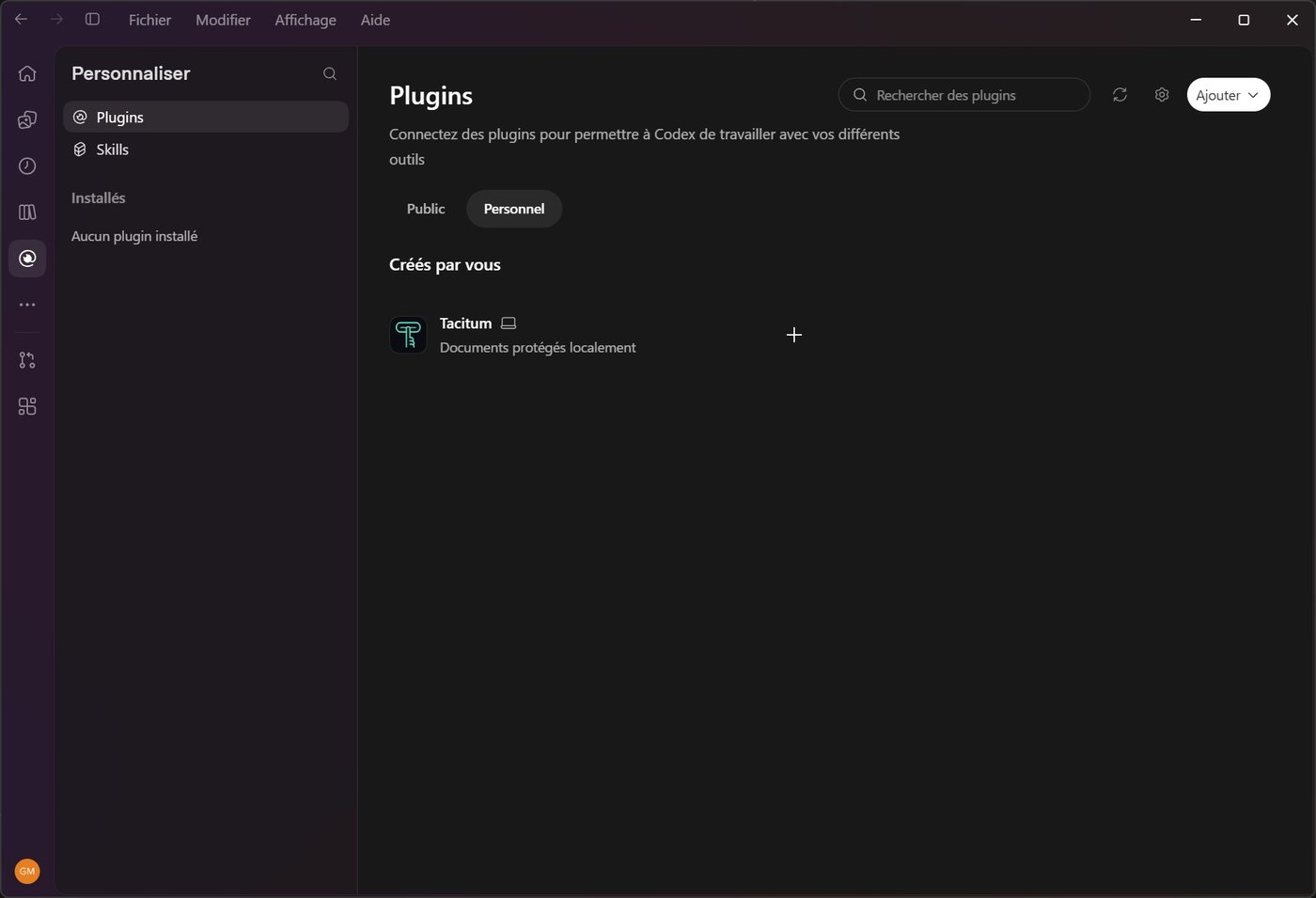
- In Codex, open the Customize panel ("Personnaliser" in the French interface), then Plugins, Personal tab: "Tacitum" ("Documents protégés localement", locally protected documents) appears under "Created by you". Click + to install it.
Approve Tacitum's guards
On your first exchange, Codex asks you to review the hooks of the plugin: these are Tacitum's three guards, which remind Codex to go through Tacitum for any document and stop its own tools from reading a raw file directly. Allow the selected items (or allow them all). Until they are approved, these protections are not active.
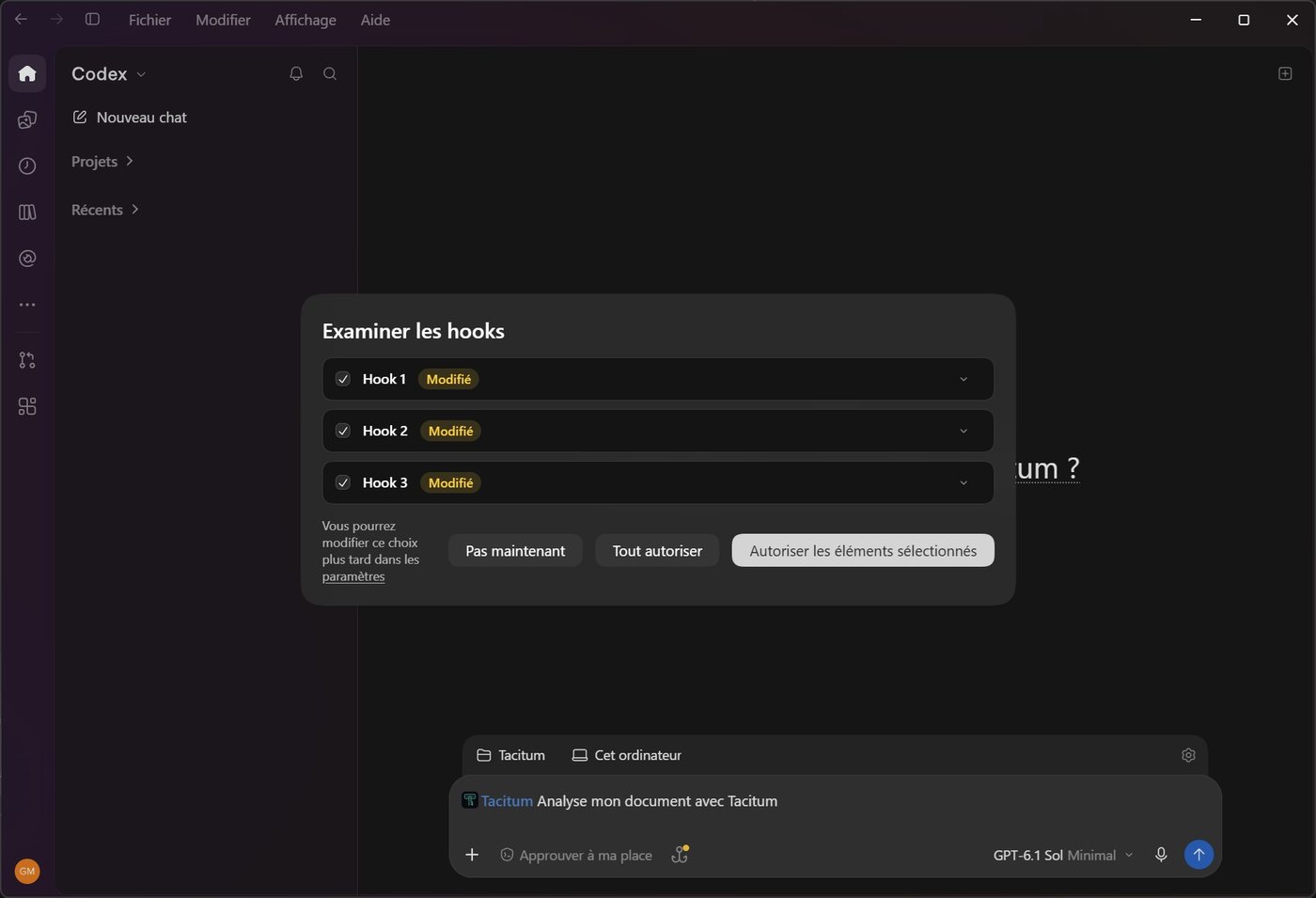
In the Codex input box, the Tacitum tag appears; the plugin also suggests the prompt "Analyse mon document avec Tacitum" (analyse my document with Tacitum).
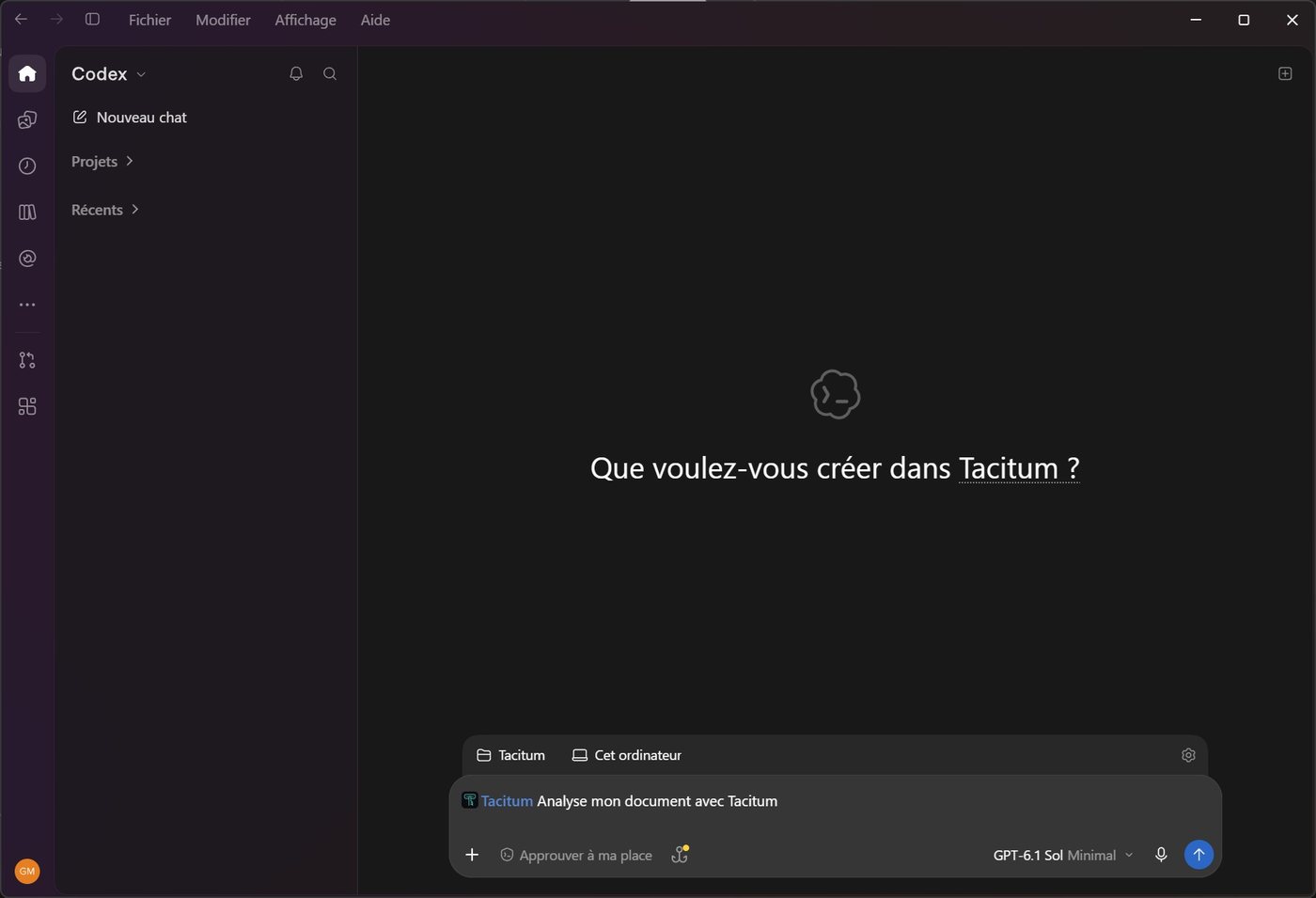
Step 3 — Have a document (or a folder) analysed
Ask the assistant, naming Tacitum
In a Claude Desktop or Codex Desktop conversation, phrase your request so that it says the document must go through Tacitum. Do not attach the file to the conversation: Tacitum is the one that reads it, on your machine.
The assistant calls Tacitum, which opens its file picker in the foreground (one or more documents) or, if you asked for a folder, its folder picker (subfolders included, up to 30 documents). Formats: .docx, .pdf, .xlsx / .xlsm, .pptx, .txt, .csv, as well as scans and images (.png, .jpg, .tif, .bmp, .webp, read by text recognition).
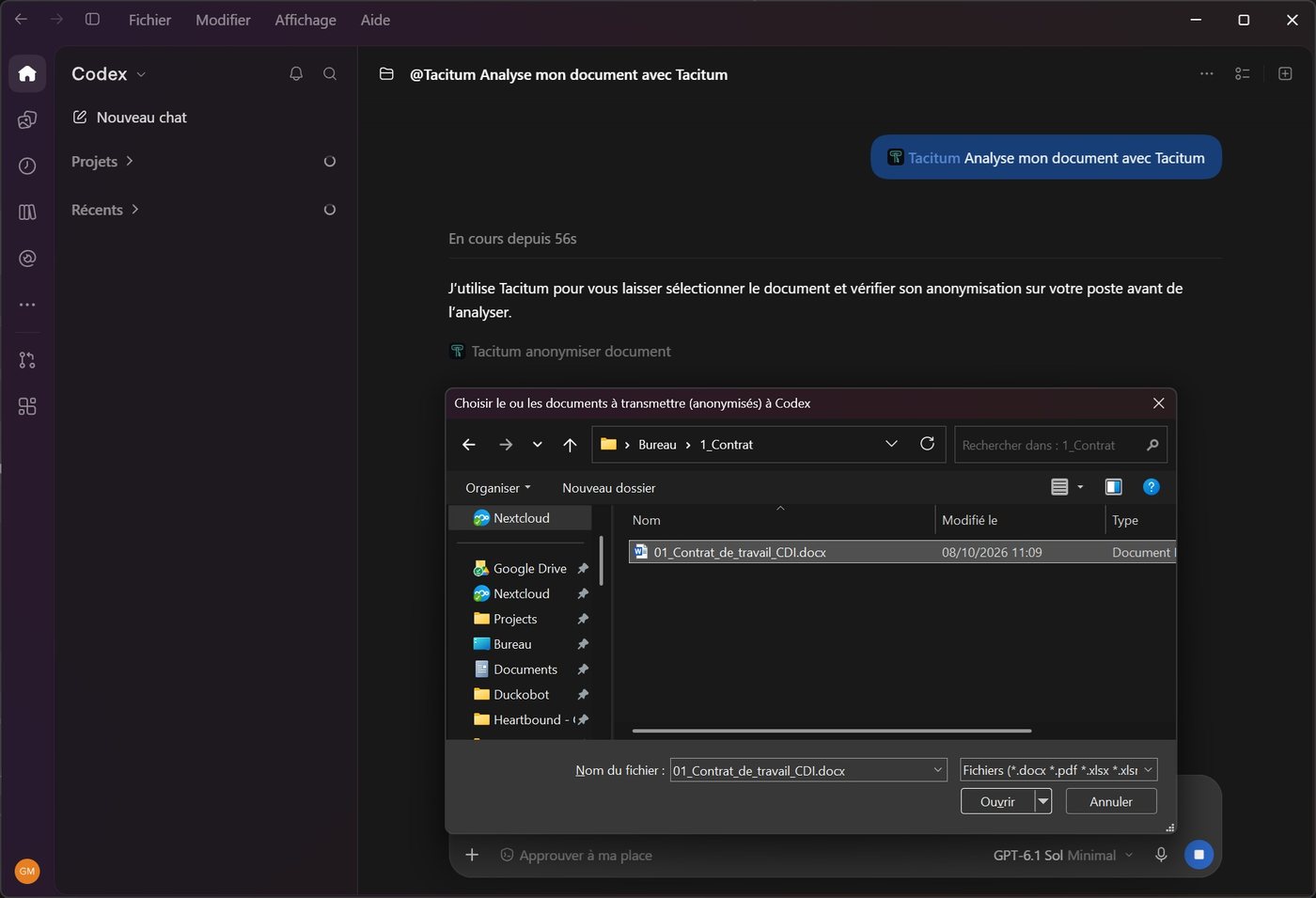
Check the masked data
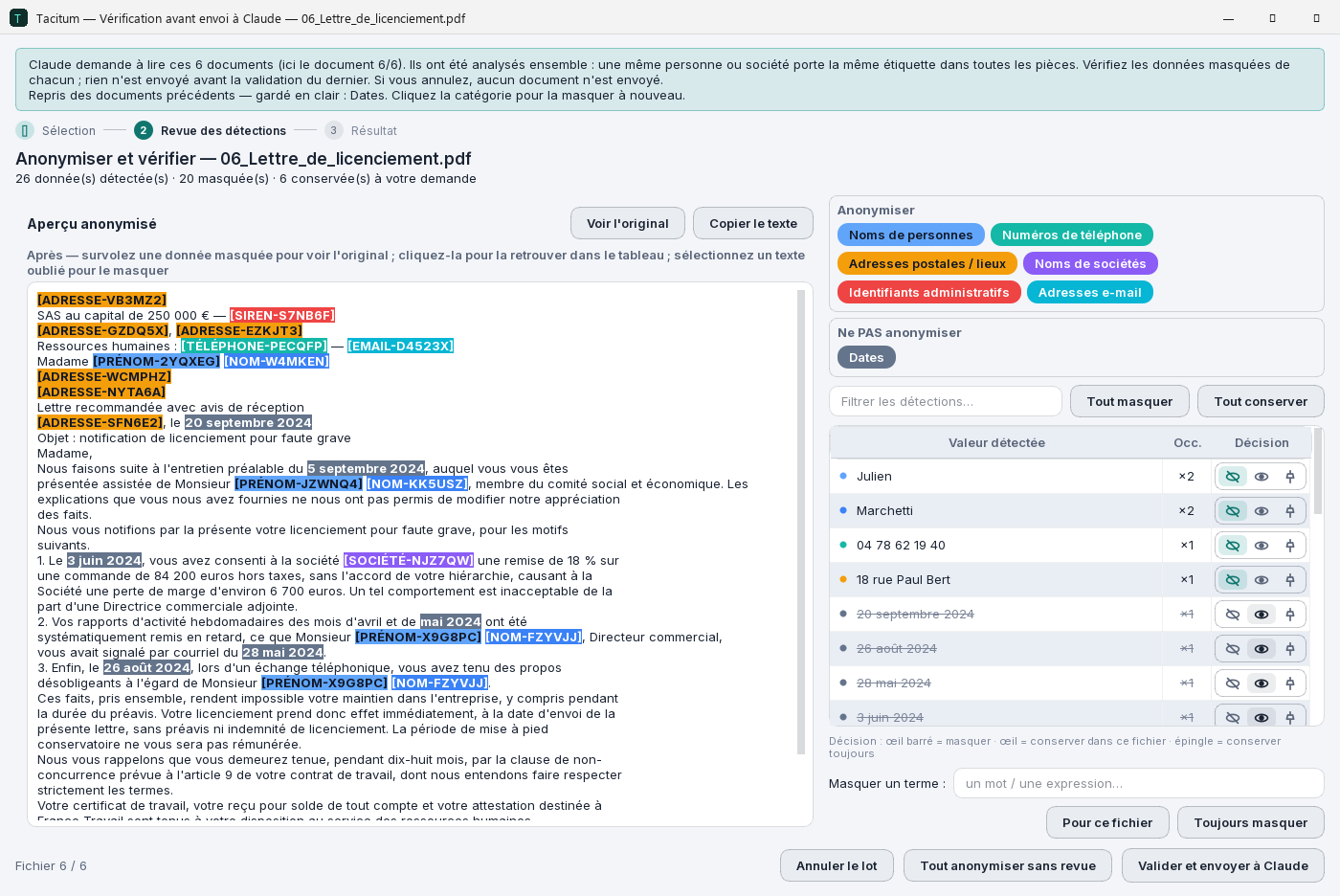
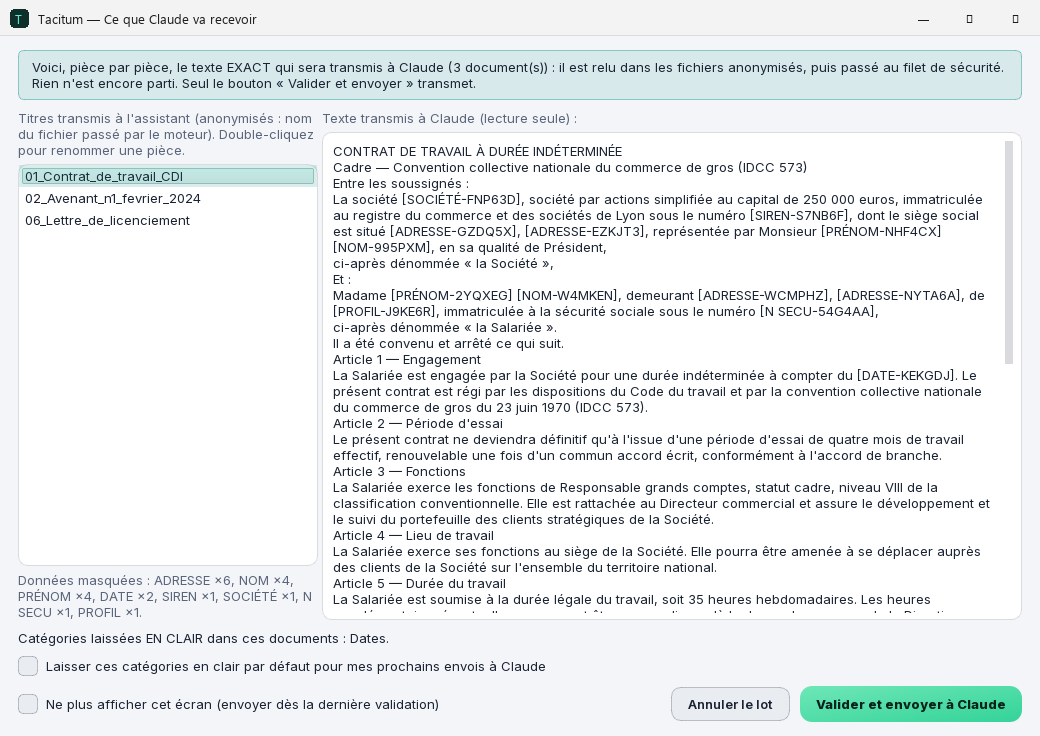
Tacitum analyses the document on your machine. The engine loads with each request, in the background as soon as the picker opens: allow around twenty to thirty seconds after you make your choice (less if you took your time choosing, more on a modest machine, for a scan or for a whole folder). Then the review window you already know opens, with a banner reminding you that the assistant is waiting for this document. You can keep a value detected by mistake, mask a term that was missed, or leave a category in clear (dates, for example, are often useful for the analysis).
For a folder, all the documents are analysed together: the same person or company carries the same code in every document, which lets the assistant cross-check them. You review each document ("Confirm and next file") or, if you prefer, you choose "Anonymize all without review": the remaining documents are then processed with your category choices. Nothing leaves before the end of the batch. Cancelling means no document is sent.
Read what the assistant will receive, then send
Each confirmed document is written to Documents\Tacitum\Anonymisés. After the last confirmation, Tacitum reads them back exactly as written and runs them through a safety net (a value masked in one document is masked in all of them). A final screen shows you, document by document, the exact text that will be sent, with the number of masked items per category. Document titles are anonymised too (the original file name goes through the engine) and can be renamed with a double-click.
Only the "Confirm and send to Claude" button (or "… to Codex") sends anything. If you would rather skip this screen in future, a checkbox turns it off; to get it back, remove the mcp_apercu_envoi key from Tacitum's config.json file, in %APPDATA%\Tacitum.
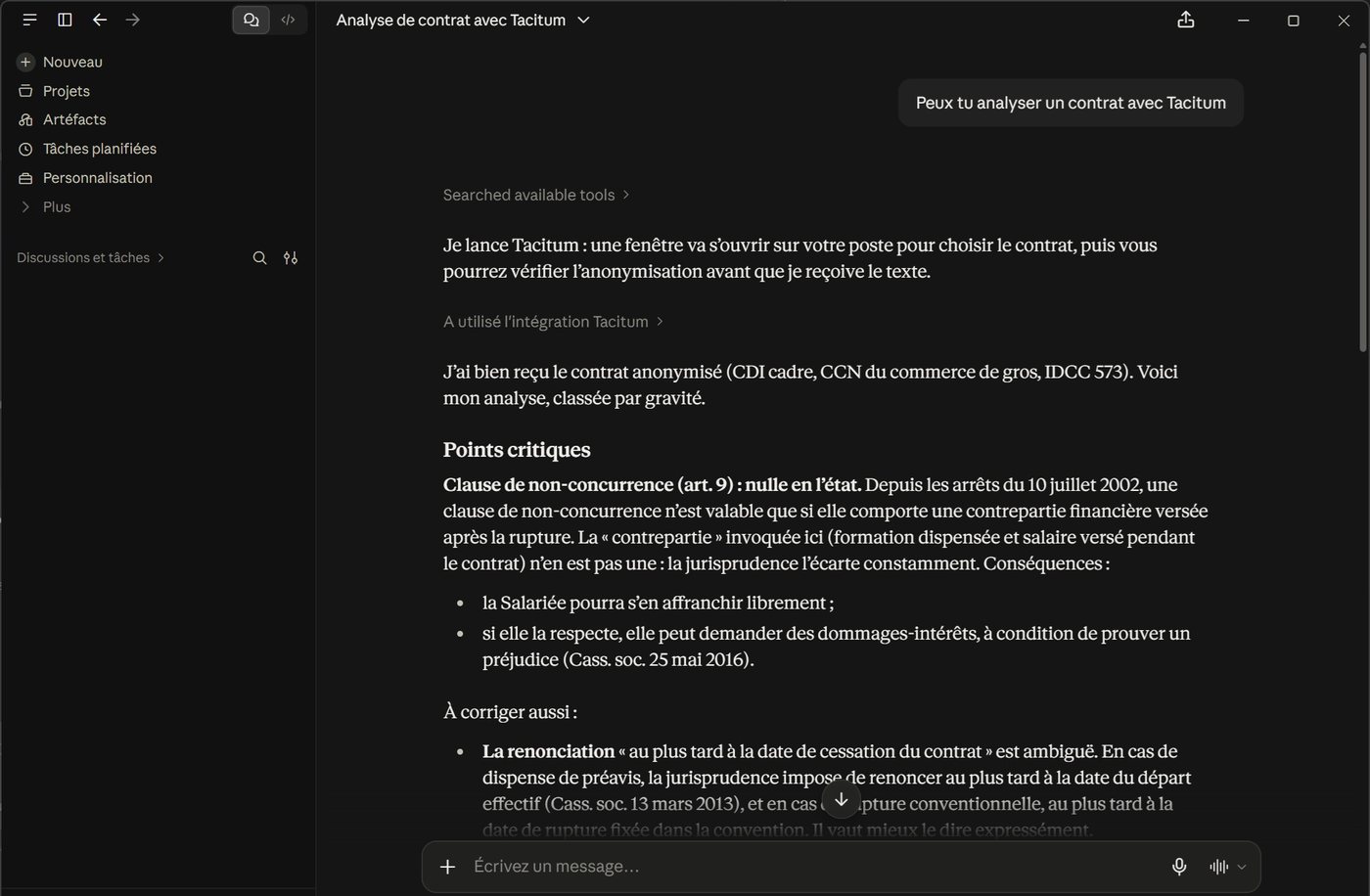
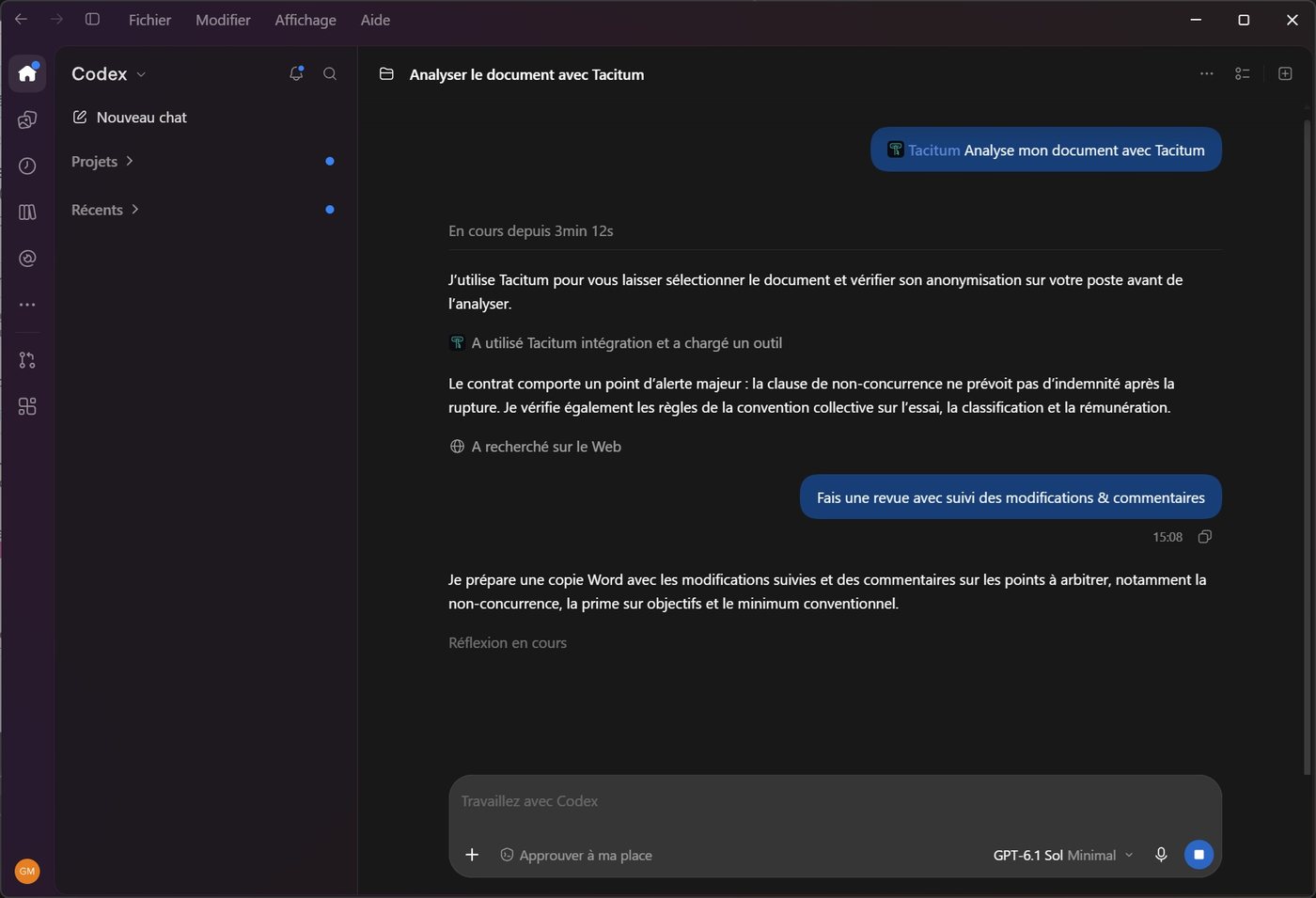
The assistant answers, with the labels
The assistant receives the anonymised texts and works on them as usual: it refers to people and companies by their codes, which stay consistent from one document to the next. If your review takes a while, it waits and picks up again on its own: you have nothing to restart.
Step 4 — Read the answer back in clear, on your machine
"Show me your answer in clear with Tacitum"
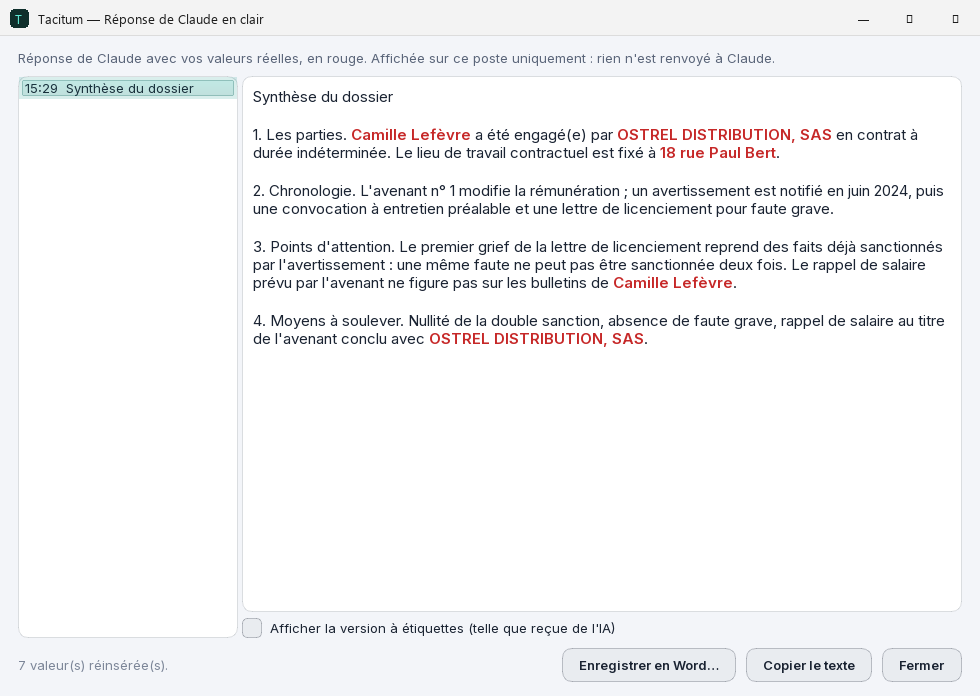
Ask the assistant to show its answer in clear: Tacitum opens a local window where your real values are put back, in red, in place of the codes. This window stays open until you close it and collects the assistant's following answers (history on the left). You can show the labelled version as the assistant wrote it, copy the text, or save it as Word with "Save as Word…", without going back through the AI.
What appears here never goes back to the assistant: Tacitum only tells it how many values were put back.
Going further
The AI Connector is not limited to reading. You get all of these features by talking to the assistant; Tacitum handles the rest, locally.
A Word or Excel document in clear
Ask for a deliverable: the assistant drafts it with the labels, and Tacitum creates the file with your real values on your machine ("Save as", in Documents\Tacitum\En clair), then opens it in Word or Excel. The assistant never sees the final file or its name.
Answer the assistant without revealing anything
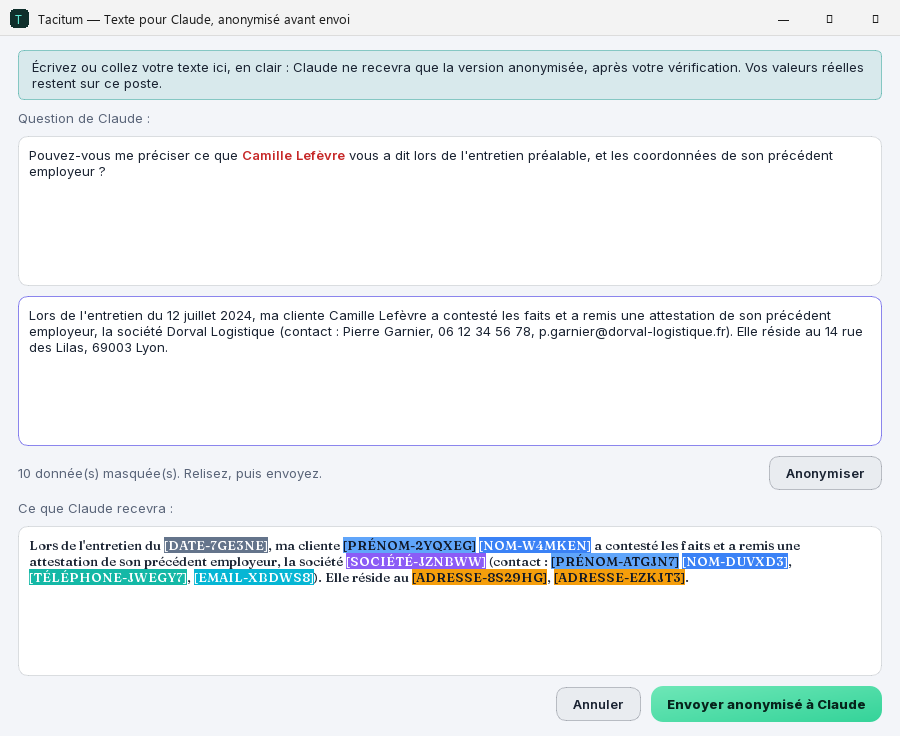
The assistant needs a detail, an e-mail you received, some notes? Do not paste them into the conversation: ask for the secure input channel. You write in clear in a Tacitum window, the text is anonymised with the same codes as your documents, you review it, then you send it.
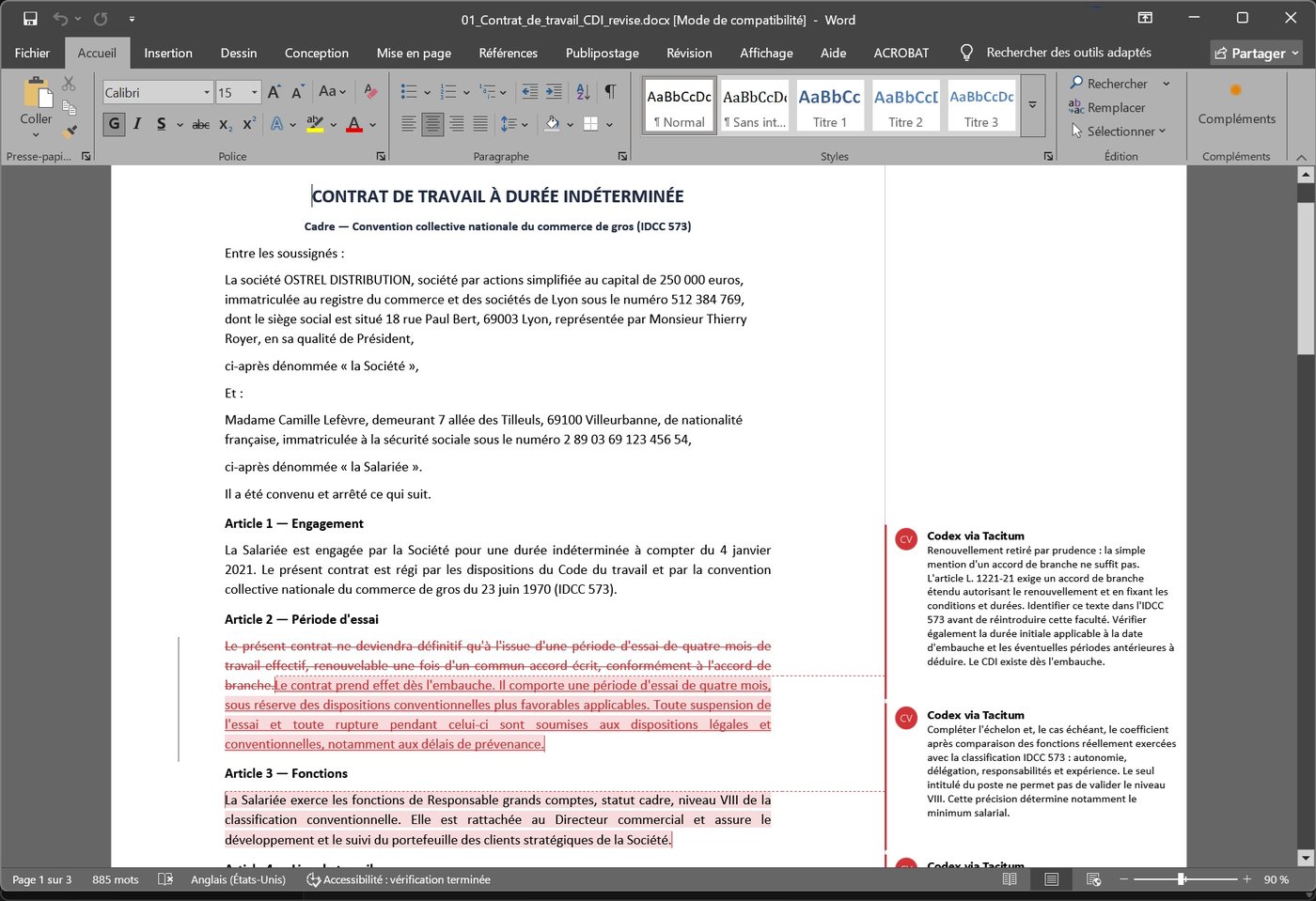
Revise a Word contract, with tracked changes
The assistant suggests corrections to the document it received; Tacitum applies them, in clear, from the original file to a _revise.docx copy: Word revision marks and, for each change the assistant gave a reason for, a Word comment. The original is never touched; you accept or reject each change in Word.
Put a file received from the assistant back in clear
Downloaded a file from the assistant that still contains labels? Tacitum creates a _restaure copy in clear next to it, without sending anything back to the AI. Works for Word, Excel, PowerPoint, PDF, text, CSV and Markdown.
The same actions remain available in the app, outside the assistant: the "Recover my values" page restores a pasted text or a document.
What goes to the assistant, what stays with you
The AI Connector changes nothing about Tacitum's rule: the raw document never leaves your machine. Here, precisely, is what is sent and what never is.
Sent to the assistant
- The anonymised text, read back from the file produced and run through the safety net: exactly what the "What Claude will receive" screen shows.
- One anonymised title per document (the file name run through the engine, e.g.
06_Lettre_[NOM-A2H7KQ]). - The number of masked items per category ("NOM ×4, ADRESSE ×6"), the format of each document (Word, PDF…), the note "from a scan" (and "hard to read" where applicable), the number of occurrences caught by the safety net, whether it was reviewed or confirmed in bulk, the number of documents not sent or skipped (unsupported format), and the categories you left in clear.
- The text you type into the secure channel, once anonymised.
- For reading back in clear, creating a document or a revision: counters only ("7 values put back").
Never sent
- The original file, or any image, signature, stamp or metadata it contains.
- The file name in clear (it often contains a person's name), or its location on your disk.
- Your real values and Restorable mode's mapping table: they stay encrypted on your machine.
- The content of the "in clear" windows, of the Word or Excel documents created, of the
_restaureand_revisecopies, or their names. - The details of an error: the assistant receives a generic message, the details are shown on your machine.
- when the purchase window opens (the offer is loaded without any identifier; the billing e-mail address is shown masked);
- when you place the order, then while the payment is being tracked;
- when you click Refresh;
- when Tacitum starts as the end date approaches (from 30 days before to 90 days after, at most once a day);
- if the connector is inactive or expired, when the assistant asks for a document or opens the secure input, so that an extension made elsewhere shows up immediately.
Limits and good practice
Never attach the raw document to the conversation
If you drop a file straight into Claude Desktop or Codex Desktop, it goes to the assistant's publisher before Tacitum can step in: no extension can intercept a chat attachment. Get into the habit of naming Tacitum in your request ("with Tacitum") or of using the assistant's Tacitum shortcuts; Tacitum then opens its own file picker. With Codex, the plugin's guards also stop its tools from reading a raw file directly; they do not cover an attachment or text pasted into the conversation.
Good to know
- Two supported assistants: Claude Desktop and Codex Desktop, for Windows. The extension and the plugin are generated for your Tacitum installation; if you move or reinstall Tacitum, run "Connect Tacitum to…" again.
- Only one pending request at a time: review, secure input or Word revision. Finish (or cancel) the current operation before making a new request.
- 30 documents per request at most for a folder; beyond that, choose a subfolder. Old
.docfiles are not supported by the connector (convert them to.docx, or go through the app). - A Word revision covers at most 60 corrections per request.
- Scans are read by text recognition: the transcription is flagged as such to the assistant, and a hard-to-read scan is explicitly marked. Review them carefully at the review step.
- Reading back in clear depends on the local mapping: once it is purged (period chosen in Settings), a code can no longer be restored. Save as Word whatever you want to keep.
- Tacitum is an aid, not a guarantee: no automated tool detects 100% of the personal data in a document. That is what the review step is for; you have the final say, including on the categories you choose to leave in clear.
Frequently asked questions
How much does the AI Connector cost, and is it a subscription?
€69 for one year of access (no VAT applicable, art. 293 B CGI), on top of the Tacitum licence (€79, one-time payment). When buying the licence, the Tacitum + AI Connector bundle combines both for €148; in the bundle, the AI Connector year starts on the day you activate your licence in Tacitum (activate within 12 months of purchase). It is not a subscription: no auto-renewal, nothing charged without a new purchase on your part. You are reminded before the end date, in the app and by e-mail at your licence's address. Invoice provided.
What happens when it expires?
Tacitum keeps working normally: anonymisation, review, "Recover my values". Only the connection with your AI assistant is turned off: if you ask it for a document, the assistant tells you that the AI Connector needs extending, and Tacitum opens a local window pointing you to the "AI Connector" window. You can extend for one year at any time; if you extend before the end, the year is added to the current period.
Can I try it with the 10 free conversions?
Yes. The free trial gives access to the AI Connector, with no purchase and no credit card: update Tacitum, connect Claude Desktop or Codex Desktop (step 2), and let it read your anonymised documents. Each document validated and sent to the assistant counts as one of the 10 free conversions. After that, the AI Connector adds to an active Tacitum licence: €69 for one year, or €148 in the bundle with the licence.
What exactly does the assistant receive?
Only the anonymised text, read back from the file produced and run through a safety net, document titles that are themselves anonymised, the format of each document and the number of masked items per category. Never the original file, its name in clear, your real values or the mapping table. The details are in the section "What goes to the assistant, what stays with you".
Can the assistant recover the real values?
No. It only receives the anonymised text, with no mapping table: for it, as for any recipient, it is irreversible. Reading back in clear happens in a Tacitum window, on your machine, from the encrypted mapping kept by Restorable mode, which is never sent.
Does it work with ChatGPT, Copilot or Gemini?
Not directly: the AI Connector supports Claude Desktop and Codex Desktop, for Windows. ChatGPT, Copilot, Gemini and the other assistants can still be used with Tacitum through the standard workflow: anonymise in the app, paste or attach the anonymised file, then restore the answer in "Recover my values". The list of supported assistants may change; during the period you have bought, Tacitum maintains compatibility with the ones announced, as far as their publishers allow.
My firm has several workstations: how does it work?
The AI Connector is bought per licence, so per user (one Windows session). For a deployment across several users, a single end date for the whole firm and a single invoice, write to sales@tacitum.tools (Enterprise offer).
Do the anonymised documents pile up on my disk?
The anonymised files produced for the assistant are stored in Documents\Tacitum\Anonymisés. The AI Connector purges them according to the retention period chosen in Settings, after each new document checked for the assistant; you can also delete them yourself at any time. The documents in clear that you create (Documents\Tacitum\En clair) are yours: Tacitum never touches them.
Need the basic workflow? See the installation and user guide. A question? contact@tacitum.tools.
The assistant reads, Tacitum protects.
Try it for free: the Tacitum trial includes the AI Connector. After that, you get it from inside Tacitum, in a few clicks: €69 for one year, no subscription. No licence yet? The Tacitum + AI Connector bundle (€148) combines both.